
The above photo is an example of my “To Do” list.
It’s where all of my work lives.
It’s a spreadsheet where my work is captured, tracked, commented on, and completed. Thanks to centralizing and keeping things simple, work rarely ventures into “Must have missed this email” land.
Getting my work done this way makes me ridiculously productive. It also frees up hours in the day for “me time” – exercise, reading, writing, or calls home to family and friends.
Here’s a breakdown of each column of my To Do list and what belongs there. At the end of this post, I’ve included a free copy of the spreadsheet I use – yours to make a copy of and customize to your needs.
Ready to get shit done? Great. Me too. Let’s dive in.
Task
We’ll start with the fundamentals. What do you need to get done? List that here.
In the example above, I need to get client programs written and sent for this month’s coaching.
Careful observers might see something else included: this section isn’t only for my tasks. It’s also for others’ tasks that I’m involved in.
For example, “Review and sign off on sales copy ahead of new product launch” is something I am involved in, but it requires Jeff, our hypothetical Marketing Team Lead, to complete, too. That’s why it lives in the list (I need to sign off on it), but also why Jeff is the “Owner” (getting it done depends on him owning his part of the project first).
In short – any tasks that affect your day or business – whether you need to do them directly or they rely on you working with others to finish – belong under “Tasks.”
Concerning
Our next column is “Concerning,” which consists of different themes of tasks you need to do on a daily, weekly, or monthly basis. This section is totally customizable and should reflect the broader themes of work you do.
In the example above, our categories are “Coaching Plans,” “Lead Gen,” and “Client Feedback.” There are lots of possible iterations of tasks that would qualify, but it would be inefficient to list them all.
Instead, group tasks by theme so you can visualize the broad areas of work you’re doing. That way, when you look back on your week’s work, you can see where you spent most of your time, whether or not it was worthwhile for you and your business, and make changes for next week if needed.
Tasks like writing coaching plans for clients and getting paid for them is a good use of your time. Do more of those.
Tasks like back and forth emails, meetings with no clear agenda, etc. are not a good use of your time. Do less of those.
A Quick Note on Effective Categorization
In order to make this replicable and easy to review, you’ll need to leverage two spreadsheet functions:
- Conditional Formatting, which lets you automatically apply things like colors to cells if the right inputs are present.
- Data Validation, which lets you control the inputs and create a drop down list of all your tasks’ themes.
For conditional formatting, I’d recommend using a simple color scheme that corresponds to the task at hand. “Lead Gen” in our above example is green because, well, more leads means more money. Keep it simple. Pick whatever color combos you’d like and think represents your tasks best.
For data validation, you’ll want to group inputs you plan to categorize as tasks into a drop down list. That way, as you add tasks, you can quickly and easily select the corresponding theme from the drop down list under “Concerning.” Here is the view you’ll want to use to accomplish that, customized to your needs:
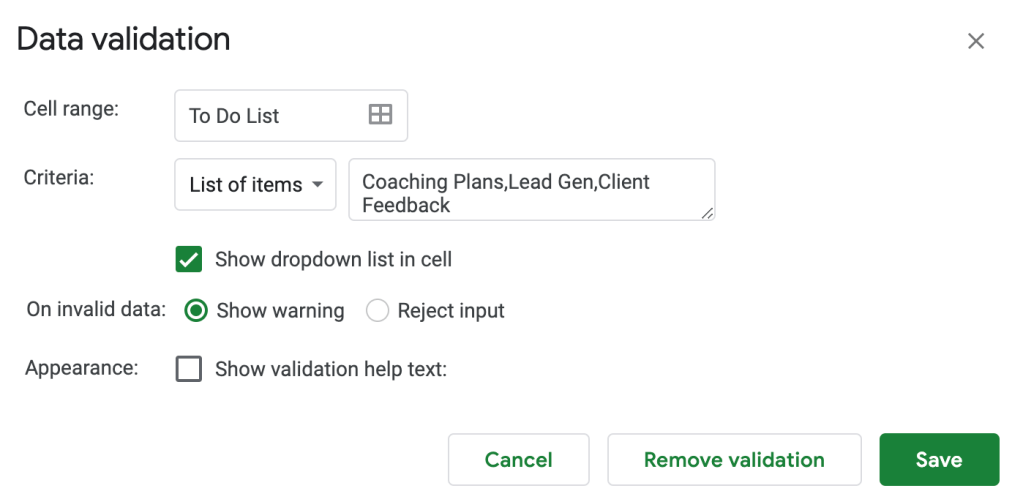
“Criteria” should be “List of Items,” in which you list out all of your themes separated by commas. Make sure to check the “Show dropdown list in cell” box below as well.
If you get your conditional formatting and data validation correct, you will end up with a nice color-coded list that you can begin populating once you start and complete your tasks.

Priority
Our next column is “Priority,” which lets you rank how important completing certain tasks is.
Need to complete a big project by Friday that will have a significant impact on your week or business? High priority.
Email from your cousin encouraging you to check out this hilarious article full of memes and Buzzfeed-style quizzes? Low priority. Or maybe just spam it. Depends on how much you like your cousin.
Everyone’s priorities will be different. Assign yours in a way that reflects your work best.
Status
Is it done? Mark it as “Complete.”
In-progress or waiting on feedback from a stakeholder or client? It’s “Pending.”
New task or something that’s re-opened and needs actioning? It’s “Open.”
As you work, tasks live between these three states. For example, an “Open” task requiring you to send an article or project contribution to a teammate becomes “Pending” once it’s in their hands, awaiting sign-off or feedback. Once they do, it’s “Complete.” Or, if there’s more work to be done, it’s back to you and “Open” again.
Always aim for “Complete.” This forces you to sharpen your focus on the next best action to take in order to get closer to that end state.
Owner
Up next is “Owner,” or who is responsible for completing or advancing the task?
In most cases, this is you. However, if the task requires collaboration, another person may be the owner if a “Pending” task requires their input. In the example above, we need Jeff to write and edit the sales copy ahead of a new product launch, so he is the owner for now. Once he’s done, I will become the owner again. Once I’ve signed off, the task is “Complete.”
Email Title
Use this column to quickly sort through your inbox and find emails containing info or next steps. Bonus tip: use the hyperlink function to link directly to the email. You’ll save some copy/paste steps in the process and never wonder where an email went again.
Last Update
This column helps keep track of when you’ve last interacted or made progress with a task. If you’ve done something meaningful to move closer to completion, note the date when you did. In doing so, you won’t ask, “When was the last time I worked on ‘X?’” You’ll have the date readily available, which is useful for both your own project timelines as well as updating others.
Deadline?
When does a task or project need to be completed? Note the end date so you can make sure your work is on pace to hit it. This helps you prioritize what needs to get done, as opposed to what could get done. It’s easy to complete things for completing things’ sake. It’s another thing entirely to work on the right stuff.
Bonus Tip: You can make your Deadline column dynamic by adding conditional formatting. As the end date nears, you can have cells automatically change colors to reflect urgency. I don’t personally do this, but it’s a nifty possibility worth exploring if you need it.
Notes
Notes are where you leave comments, such as, “Email sent to Mary. Waiting on her reply.” This lets you add context and serves as a reminder for next steps.
Conclusion
There you have it – an overview of how I structure my To Do list for maximum productivity and minimal confusion. As we say at Google, please “steal with pride” and use it to suit your needs.
Until next time, stay productive and stay awesome,
Ian
 Ian Estabrook
Leave a comment